DrTusz - www.drtusz.com
Language
Polski
English
Information
Opinie o DrTusz.pl - Tusze Tonery Drukarki DrTusz.pl - dożywotnia gwarancja na zamienniki DrTusz.pl - zawsze błyskawiczna przesyłka
Newsletter
Contact
Product Info

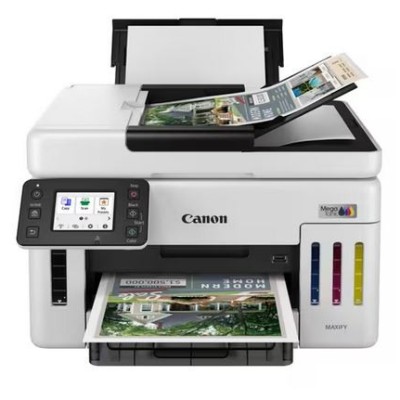
All-In-One Printer Canon MAXIFY GX6140

Category Inkjet Devices Manufactured by Canon
Class Color Catalog Number 6882C009
Type

All-in-One Printer

Availability Ask for availability
always free delivery always free deliveryalways free delivery
1.859,99 PLN
1.512,19 PLN netto

Product temporarily unavailable

Ask for availability

Opinions about the DrTusz.com store See all ►
”

Zakup bardzo udany, tusze ok.

ANNA 24 September 2026 | 18:13
”

Szybko, sprawnie. Przesyłka monitorowana. Nic więcej nie trzeba.

Andrzej 24 September 2026 | 18:05
Specification Related products Ask question Reviews (0)
Ask question
Did not find your answer? Ask us about:
All-In-One Printer Canon MAXIFY GX6140 (6882C009)
Reviews
This product has no reviews yet.
Write first review:
Write review:
Oceń jakość produktu:
No rating
This product was added to our catalog on Tuesday 26 August, 2025.
Compatible Products
❮
of 7
❯
Category Inkjet Devices
Type All-in-One Printer
Class Color
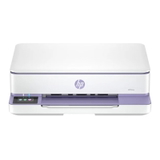
Manufactured by Hewlett-Packard (HP)
Catalog Number 223N4B
Availability Ask for availability
In stock 0 szt.
284,99 PLN
(231,70 PLN netto)
 
Free Delivery
Sold
Category Inkjet Devices
Type All-in-One Printer
Class Color
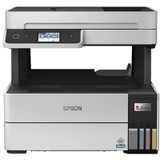
Manufactured by Epson
Catalog Number C11CL41409
Availability Ask for availability
In stock 0 szt.
1.729,99 PLN
(1.406,50 PLN netto)
 
Free Delivery
Sold
Category Inkjet Devices
Type All-in-One Printer
Class Color
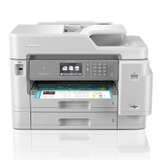
Manufactured by Brother
Catalog Number MFCJ5955DW
Availability Ask for availability
In stock 0 szt.
1.938,99 PLN
(1.576,42 PLN netto)
 
Free Delivery
Sold
Category Inkjet Devices
Type All-in-One Printer
Class Color
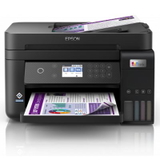
Manufactured by Epson
Catalog Number C11CJ89402
Availability Ask for availability
In stock 0 szt.
2.081,99 PLN
(1.692,68 PLN netto)
 
Free Delivery
Sold
Category Inkjet Devices
Type All-in-One Printer
Class Color
Manufactured by Hewlett-Packard (HP)
Catalog Number 714J3B
Availability Ask for availability
In stock 0 szt.
345,99 PLN
(281,29 PLN netto)
 
Free Delivery
Sold
Category Inkjet Devices
Type All-in-One Printer
Class Color
Manufactured by Epson
Catalog Number C11CJ61403
Availability Ask for availability
In stock 0 szt.
1.493,99 PLN
(1.214,63 PLN netto)
 
Free Delivery
Sold
Category Inkjet Devices
Type All-in-One Printer
Class Color
Manufactured by Epson
Catalog Number C11CJ60402
Availability Ask for availability
In stock 0 szt.
2.037,99 PLN
(1.656,90 PLN netto)
 
Free Delivery
Sold
Category Inkjet Devices
Type All-in-One Printer
Class Color
Manufactured by Hewlett-Packard (HP)
Catalog Number 40Q45B
Availability Ask for availability
In stock 0 szt.
498,99 PLN
(405,68 PLN netto)
 
Free Delivery
Sold
Category Inkjet Devices
Type All-in-One Printer
Class Color
Manufactured by Brother
Catalog Number DCPT520W
Availability Ask for availability
In stock 0 szt.
929,99 PLN
(756,09 PLN netto)
 
Free Delivery
Sold
Category Inkjet Devices
Type All-in-One Printer
Class Color
Manufactured by Epson
Catalog Number C11CK58403
Availability Ask for availability
In stock 0 szt.
1.402,99 PLN
(1.140,64 PLN netto)
 
Free Delivery
Sold
Category Inkjet Devices
Type All-in-One Printer
Class Color
Manufactured by Brother
Catalog Number MFCT920DW
Availability Ask for availability
In stock 0 szt.
1.333,99 PLN
(1.084,55 PLN netto)
 
Free Delivery
Sold
Category Inkjet Devices
Type All-in-One Printer
Class Color
Manufactured by Epson
Catalog Number C11CJ67434
Availability Ask for availability
In stock 0 szt.
1.123,99 PLN
(913,81 PLN netto)
 
Free Delivery
Sold
Category Inkjet Devices
Type All-in-One Printer
Class Color
Manufactured by Hewlett-Packard (HP)
Catalog Number 223R4B
Availability Ask for availability
In stock 0 szt.
563,99 PLN
(458,53 PLN netto)
 
Free Delivery
Sold
Category Inkjet Devices
Type All-in-One Printer
Class Color
Manufactured by Epson
Catalog Number C11CJ67406
Availability Ask for availability
In stock 0 szt.
787,99 PLN
(640,64 PLN netto)
 
Free Delivery
Sold
Category Inkjet Devices
Type All-in-One Printer
Class Color
Manufactured by Brother
Catalog Number MFCJ1010DW
Availability Ask for availability
In stock 0 szt.
629,99 PLN
(512,19 PLN netto)
 
Free Delivery
Sold
Category Inkjet Devices
Type All-in-One Printer
Class Color
Manufactured by Epson
Catalog Number C11CJ66427
Availability Ask for availability
In stock 0 szt.
919,99 PLN
(747,96 PLN netto)
 
Free Delivery
Sold
Category Inkjet Devices
Type All-in-One Printer
Class Color
Manufactured by Epson
Catalog Number C11CJ63414
Availability Ask for availability
In stock 0 szt.
1.261,99 PLN
(1.026,01 PLN netto)
 
Free Delivery
Sold
Category Inkjet Devices
Type All-in-One Printer
Class Color
Manufactured by Hewlett-Packard (HP)
Catalog Number 242P6B
Availability Ask for availability
In stock 0 szt.
304,99 PLN
(247,96 PLN netto)
 
Free Delivery
Sold
Category Inkjet Devices
Type All-in-One Printer
Class Color
Manufactured by Epson
Catalog Number C11CJ62402
Availability Ask for availability
In stock 0 szt.
1.645,99 PLN
(1.338,20 PLN netto)
 
Free Delivery
Sold
Category Inkjet Devices
Type All-in-One Printer
Class Color
Manufactured by Epson
Catalog Number C11CJ65412
Availability Ask for availability
In stock 0 szt.
1.275,99 PLN
(1.037,39 PLN netto)
 
Free Delivery
Sold
1... 3  4  5  6  7 
Description

Frequently asked questions about this product

Quick Decision Guide:

1. Determine what you print and how often (documents vs. photos).
2. Choose a technology: laser (lots of text, low cost per page) or inkjet (color, photos).
3. Check the model specifications to ensure the features you need (duplex printing, network connectivity, MFP).
4. Calculate the operating cost based on the cartridge/toner yield.
5. If you provide your monthly print volume, the percentage of color printing, and the features you need, we’ll recommend a specific printer model.

Before making a purchase, we invite you to read these articles, which will help you make the best decision based on your needs:

How to Choose a Printer – A Guide for Customers
Laser and Inkjet Printers – Differences and Uses
Printer Specifications – Mysterious Jargon
Printer Cartridge Yield – How to Calculate the Cost Per Page


Yes, every printer is sold with factory-installed tanks (starter cartridges). These typically hold less ink or toner than standard cartridges sold separately. They are included so you can start printing right away without having to buy additional supplies.

In practice, this means that once you take the printer out of the box, you can start printing right away, but with heavy use, you’ll use up the starter cartridge faster and will need a full-size one sooner.


The fastest way to perform a printhead test (nozzle check) on an inkjet printer is from your computer or the printer’s control panel.

How do you run the test from your computer?
1. Turn on the printer and make sure there is plain paper in the paper tray.
2. On your computer, open Control Panel or Settings, then go to the Devices and Printers (or Printers and Scanners)
section 3. Click your printer’s icon and select Printer Properties or Printing Preferences.
4. In the panel, find the Test Print or Print Test Page option.
6. Click Print to have the printer generate a test pattern.

How do I run a printhead test from the printer?
1. Make sure plain paper is loaded in the paper tray.
2. On the touchscreen or using the buttons on the printer’s control panel, go to Settings.
3. Find Maintenance or Tools in the menu.
4. Select Nozzle Test or Nozzle Check and confirm the print.

How to evaluate the test results:

Correct printout—the printout is clear for every color; no lines, gaps, or missing areas are visible.

Clogged nozzles—the test print shows gaps, lines, and missing sections. This means that some nozzles are dried out or have air trapped inside them. In this case, run the Printhead Cleaning function.

More about cleaning the print head:
How do I clean the print head?


To clean the print head:

1. Run a printhead test.
For more information on how to run a printhead test, see the question “When does the printer’s printhead need cleaning?”
If the test clearly shows gaps, broken lines, or missing areas, this means the printhead needs cleaning.

2. Run a
printhead cleaning: - Turn on the printer and make sure it is ready to print.
- In Windows, go to Settings → Printers & Scanners, select your printer, and open its Print Preferences or Properties.
- Go to the Maintenance, Care, or Service tab.
- Select "Printhead Cleaning" and follow the on-screen prompts.
- If your printer has a control panel or touchscreen, you’ll usually find this option in the Tools / Settings / Maintenance menu
.- After cleaning is complete, run a test print (print head test) to check the results.

More about cleaning the print head:
How do I clean the print head?


It’s a good idea to clean the print head when print quality has noticeably deteriorated, even though the cartridges have enough ink. The most common signs are:

✓ white, horizontal stripes on the printout,

✓ broken or faint lines in the text,

✓ missing parts of letters or graphics,

✓ one color missing,

✓ incorrect, distorted, or overly bright colors,

✓ blank or nearly blank pages even though the ink cartridges are full.

This problem often occurs after a long break in printing, because the ink may have partially dried in the print head nozzles.